Minecraft can be a creative game, but you may decide it is time for a break. Perhaps it is getting in the way of homework or bedtime, or you want more control over when your child plays. You can block Minecraft on your child’s phone using Kahf Kids and change the setting when your family is ready.
Quick answer: Install Kahf Kids on your child’s phone, open the parent panel, and tap Block Apps. In the App Blocker, turn on Blocklist Mode, choose Always block apps, and select Minecraft. Confirm your choice, then try opening Minecraft to check that the block works. App blocking is a premium feature.
This guide covers the Kahf Kids app on iPhone and Android. The screenshots show the iPhone interface; menus and permission prompts can look different on Android. A block on a phone does not automatically block Minecraft on a computer or gaming console.
Before You Start: Install Kahf Kids
Download Kahf Kids on the phone your child uses:
Open the app, set up the parent panel, and grant the permissions requested for app blocking. Keep your parent PIN private. If you are considering deleting Minecraft, check that your child’s worlds are backed up first: deleting an app may remove data stored on the device.
How to Block Minecraft on Your Kid’s Phone: Step by Step
Follow these steps on your child’s device. The exact screens and permissions may vary by phone and app version.
Step 1: Open the App Blocker
Kahf Kids → Parent Panel → Block Apps
Open Kahf Kids and enter the parent panel. Tap Block Apps to open the App Blocker.
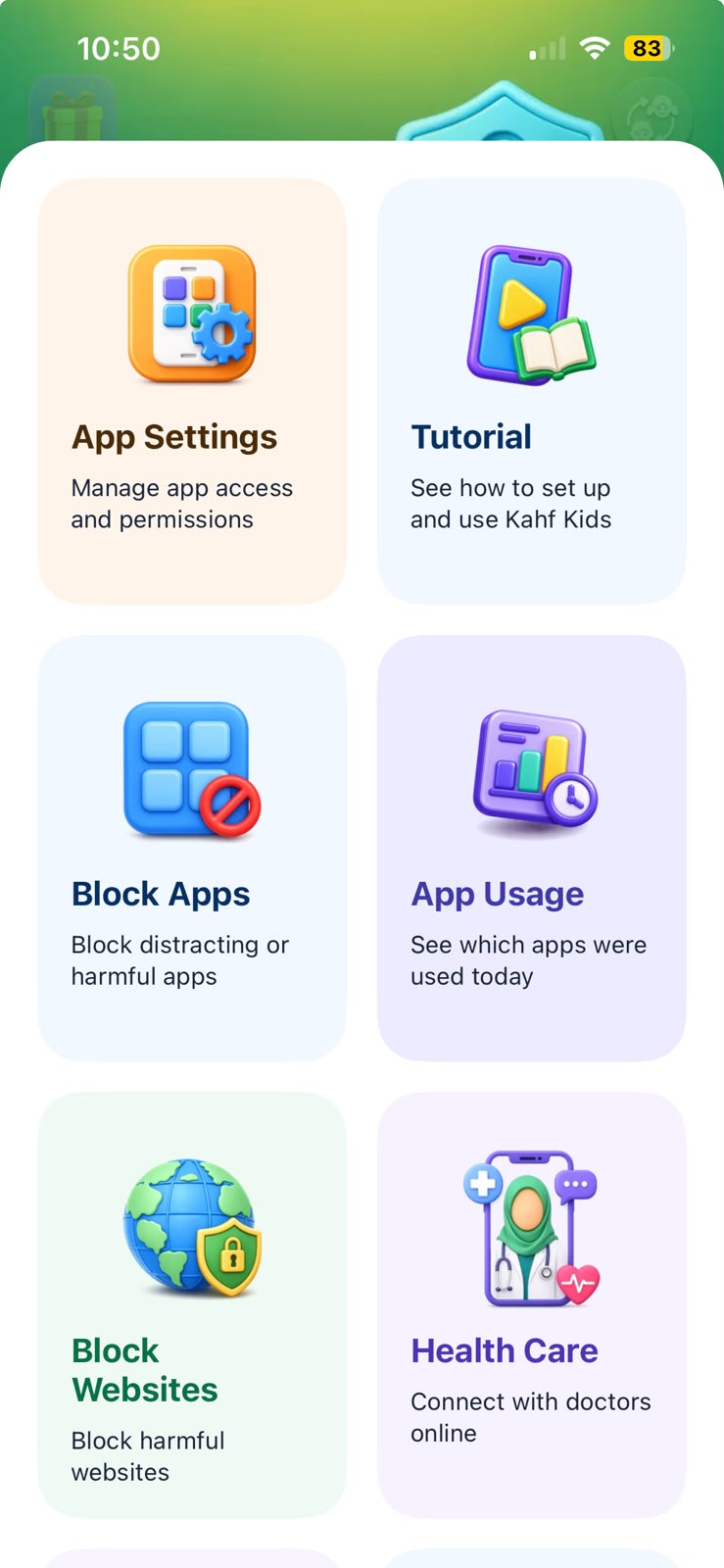
Step 2: Turn On Blocklist Mode
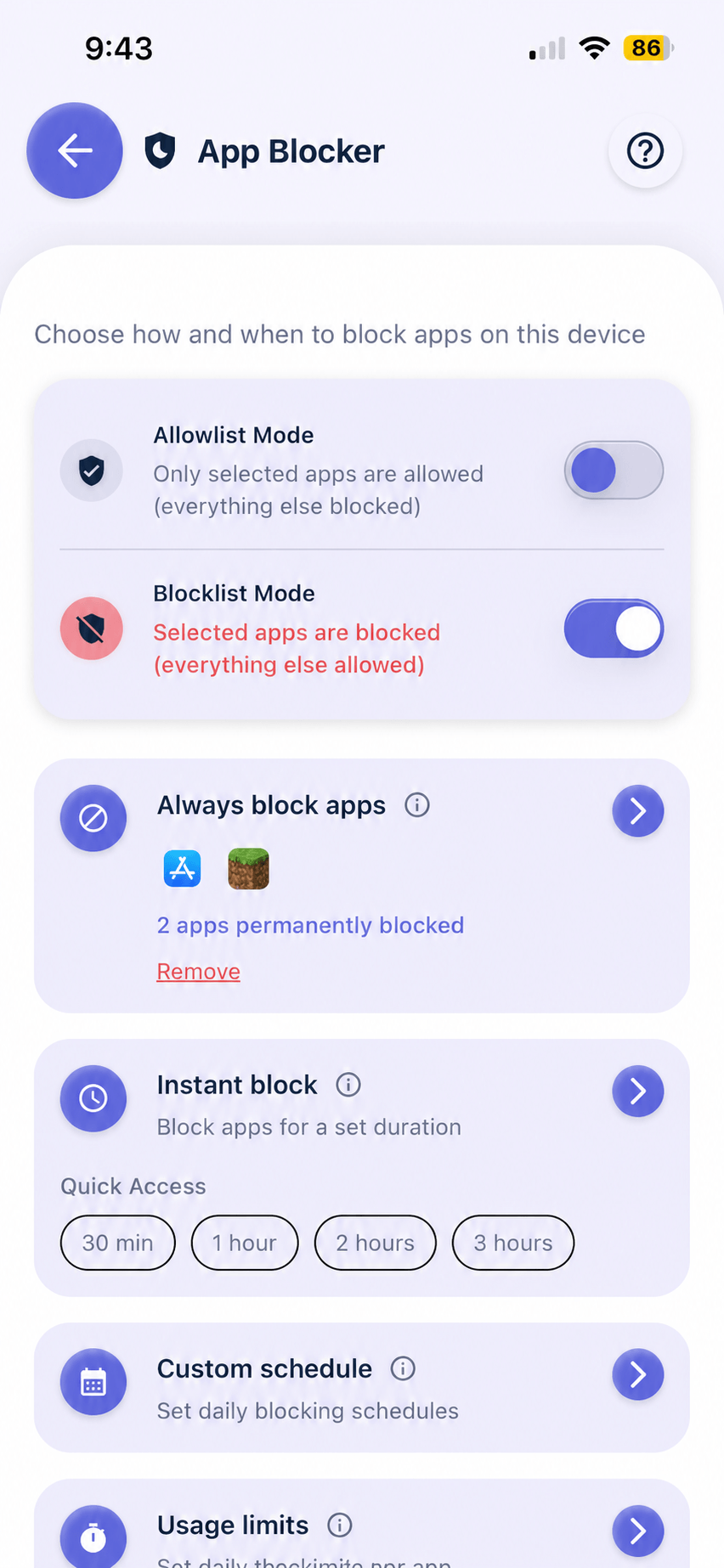
App Blocker → Blocklist Mode
Turn on Blocklist Mode to block the apps you select. On the screen shown below, the App Blocker also offers options for a temporary block, a schedule, and usage limits.
Step 3: Select Minecraft
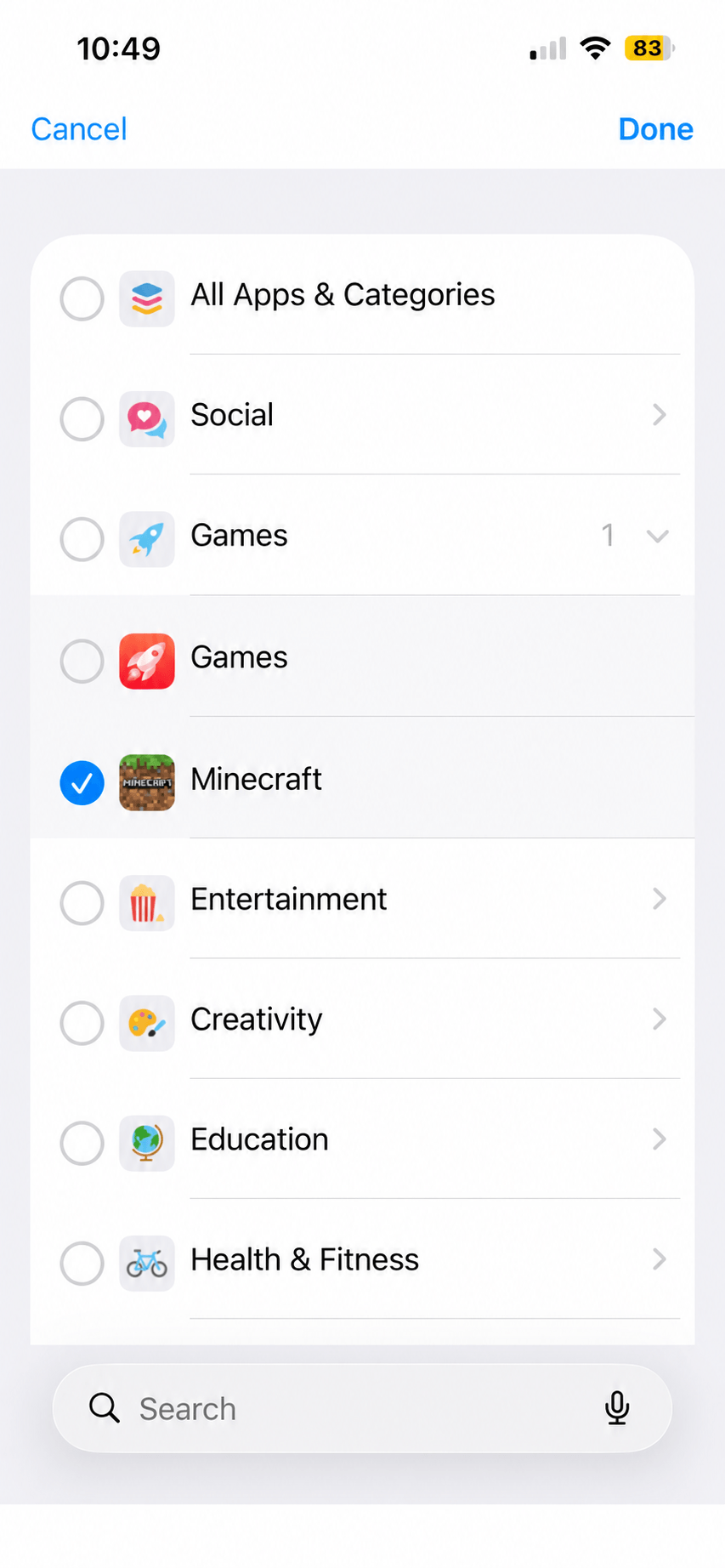
Always block apps → Games → Minecraft → Done
Tap Always block apps. Find Minecraft in the app picker, select it, and confirm your choice. On the iPhone screen below, Minecraft appears under Games; you can also use the search field to find it.
Step 4: Test the Block
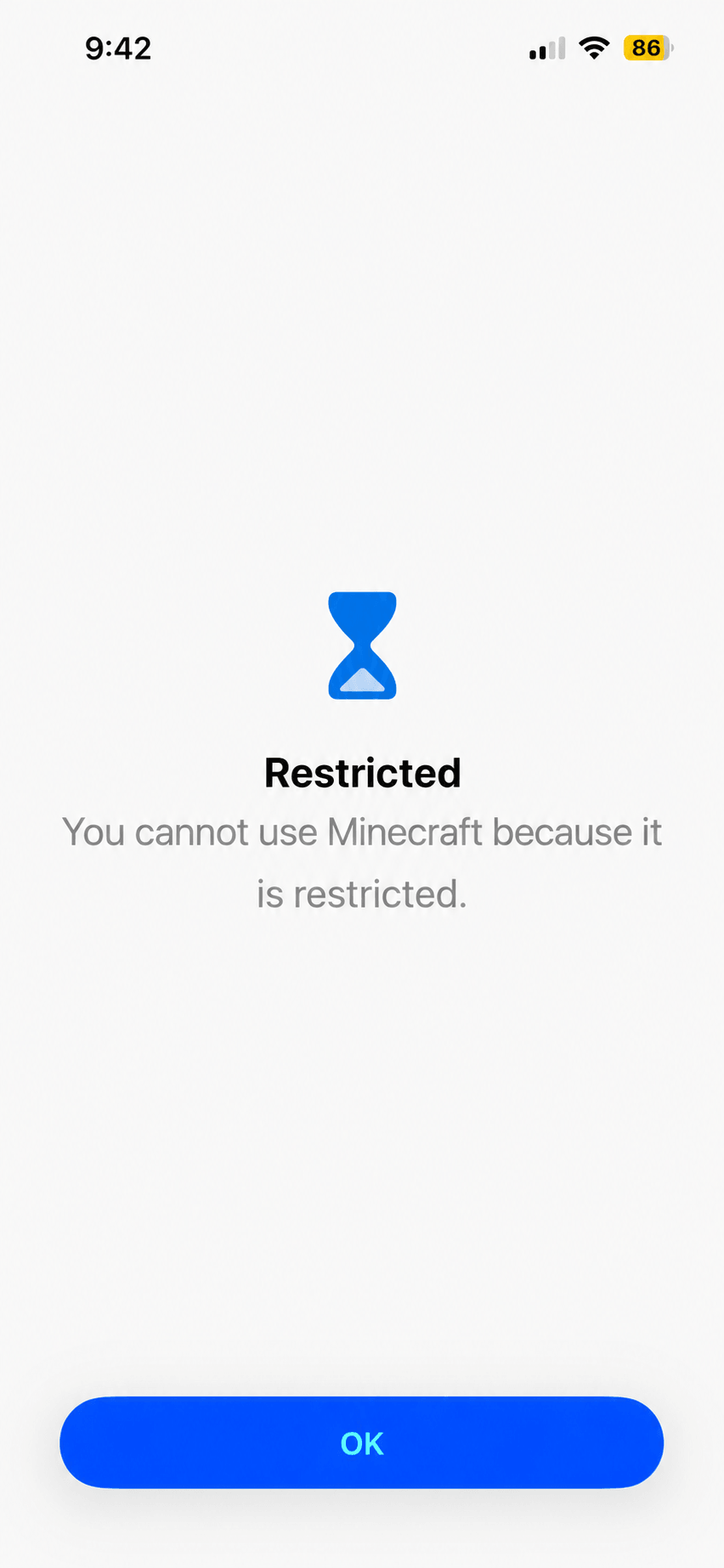
Return to the phone’s home screen and try to open Minecraft. On the iPhone shown here, a restriction message appears instead of the game. If the game still opens, check that Minecraft is selected and that the requested permissions are enabled.
To allow Minecraft again, return to the parent panel and remove it from the list of always-blocked apps. Test the app again after changing the setting.
Want to Limit Minecraft Instead?
A full block is one option. If you want your child to play at certain times, the Kahf Kids App Blocker also offers scheduling and usage limits. Choose the setting that fits your family’s routine and test it on the device.
- Instant block: Pause access for a set period, such as during homework or a family meal.
- Custom schedule: Set times when Minecraft should be blocked, such as bedtime.
- Usage limit: Set a daily allowance for the app.
For help thinking about the wider routine, read how much screen time is healthy for kids.
Why Do Parents Limit Minecraft?
Every family has different reasons. You may want gaming to stop before bedtime, keep play from crowding out homework and outdoor time, or review who your child can interact with online. Minecraft offers different experiences depending on how it is played and which settings are enabled.
If you want to manage online features rather than block the entire game, start with Minecraft’s parental-controls guide. For broader phone settings, see how to block haram content on your child’s phone.
Help Prevent Minecraft From Being Downloaded Again
Parents can use Kahf Kids to block access to the App Store or Google Play Store on the child’s device, and use its website blocker for specific download websites. In the parent panel, open Block Apps and check whether the store appears in the app picker; add it to the block list if available. Use Block Websites to add any relevant download sites you want to restrict. Check the options and permissions on your child’s device, then test the store and websites.
Blocking a store or website can also stop access to other apps or sites. These settings do not guarantee that every download method is blocked, and a website block alone does not block the installed game. Review the device’s installation settings too.
What If Minecraft Is Still Accessible?
- Open the Kahf Kids parent panel and check that Minecraft is in the always-blocked list and the intended mode is active.
- Review the permissions requested by Kahf Kids on the child’s phone and complete any missing setup.
- Try opening the game again. Menu names and available controls can vary by device and software version.
- Check any other phones, tablets, computers, or consoles separately. Blocking a website is also a separate setting from blocking the app.
To review app downloads as well, see Apple’s Ask to Buy guidance and Google Play purchase approvals. Both have exceptions for some previously obtained apps, so test the controls you choose.
Managing other apps? See our guides to blocking Roblox and blocking YouTube on a child’s phone.
Help Your Child Find Something Else to Enjoy
Talk with your child about why you are changing the setting and when you will revisit it. You could choose an offline activity together or explore age-appropriate apps and videos. These guides offer ideas:
- Best Islamic apps for kids
- Halal videos for kids
- Quran apps for kids
- Safe content for Muslim children
- Islamic stories for kids
- Islamic homeschool resources
- Islamic videos for kids
- A guide to children’s YouTube habits
Frequently Asked Questions
Can I block Minecraft without deleting it?
Yes. Kahf Kids’ App Blocker can restrict access while keeping the app on the phone. Test the block after setup.
Can I block Minecraft only during certain hours?
Kahf Kids offers a custom schedule in its App Blocker. Use it to set the times you want the app blocked, then check that the schedule works on your child’s device.
Will blocking Minecraft on a phone also block it on a console?
No. A block set on the phone does not automatically apply to a console or computer. Check the parental controls on each device your child uses.
Can my child reinstall Minecraft?
Download and reinstall rules depend on the device and its settings. Review the phone’s app-installation controls and test what happens on your child’s account. App-store approval settings have exceptions, including some previous downloads.
How do I unblock Minecraft?
Open the Kahf Kids parent panel, return to the App Blocker, and remove Minecraft from the always-blocked list. Try opening it again to confirm access.
Is Kahf Kids’ app blocker free?
The app can be downloaded from the app stores, and app blocking is a premium feature. Check the current plan and trial details in the app or on the Kahf Kids parental-control page.
Make a Plan That Works for Your Family
Blocking Minecraft gives you a way to pause play while you decide on a routine. Explain the change to your child, agree when you will review it, and test the setting before handing the phone back.
Install Kahf Kids: App Store for iPhone | Google Play for Android