Every Muslim parent shares the same worry the moment they hand a child a phone. One wrong tap can open the door to pornography, gambling ads, violent videos, or content that quietly chips away at a child’s faith.
The reassuring truth is that you do not need to be a tech expert to fix this. To block haram content on your child’s phone, you simply layer a few free settings with one trusted app — and you can do it in well under an hour.
This guide walks you through every step in plain language, for both iPhone and Android. We start with the free tools already on the device and finish with the strongest protection a Muslim family can install.
| Quick Answer To block haram content on your child’s phone, combine four layers: (1) turn on the built-in content filter — Screen Time on iPhone or Family Link on Android, (2) lock SafeSearch so explicit results never appear, (3) add a DNS-level filter that blocks adult and gambling sites across your whole network, and (4) install a dedicated halal app like Kahf Kids to block unsafe apps and websites and replace idle screen time with parent-approved Islamic content. No single setting is enough on its own — layering them is what keeps your child genuinely safe. |
For a wider view of digital safety beyond just blocking, pair this guide with our companion article on how to block inappropriate content and ensure a safe internet for kids.
How to Block Haram Content on Your Child’s Phone: A Step-by-Step Guide for Muslim Parents
Before You Start: A 2-Minute Checklist
Gather a few things first so the setup goes smoothly and nothing gets skipped. Having these ready means you can finish all four layers in one sitting.
- Your child’s phone and your own phone (some controls are managed from the parent device).
- The child’s Apple ID or Google account login details.
- A new passcode for parental controls that your child does not know.
- Access to your home Wi-Fi router settings, if you want network-wide protection.
- About 30–45 minutes of uninterrupted time.
Step 1 — Block Adult Websites on iPhone (Screen Time)
Apple’s built-in Screen Time can filter adult websites automatically and lock the setting behind a passcode. This is the fastest free win on any iPhone or iPad.
- Open Settings → Screen Time and tap Turn on Screen Time if it is not already active.
- Tap Content & Privacy Restrictions and toggle it on.
- Go to Content Restrictions → Web Content.
- Choose Limit Adult Websites to auto-block known adult sites, or pick Allowed Websites Only for the strictest control, where only sites you approve will open.
- Add any specific sites you want blocked under the Never Allow list.
- Set a Screen Time passcode that is different from the phone’s unlock code, so the settings stay locked.
Keep in mind that Screen Time mainly filters Safari and the built-in browser. It does not block content inside every third-party app, which is exactly why the later layers matter.
Apple keeps the official steps updated here: Apple Support — parental controls for your child’s iPhone (opens in a new tab).
Step 2 — Filter Content on Android (Google Family Link)
On Android phones and tablets, Google Family Link is the free, official way to supervise a child’s account. It lets you filter search, lock down Chrome, and approve every new app.
- Install Google Family Link on both your phone and your child’s device, then link them using the child’s Google account.
- Open your child’s profile in Family Link and tap Controls.
- Tap Google Search and turn on SafeSearch — Filter, which hides explicit results and stays locked for supervised accounts.
- Tap Chrome and select Try to block explicit sites. Incognito mode is disabled automatically for supervised accounts.
- Use the Apps controls to require your approval before any new app can be installed.
Family Link is powerful, but tech-savvy teens sometimes look for workarounds. That is why pairing it with a DNS filter and a dedicated app closes the remaining gaps.
Google’s full walkthrough is here: Google Families — Chrome and your child’s account (opens in a new tab).
Step 3 — Block Haram Sites Network-Wide (DNS Filter)
A DNS filter blocks adult and gambling domains before they ever load. Because it works at the network level, it protects every device and every browser at once — even inside apps.
Think of DNS as the phone book of the internet. A family DNS service simply refuses to look up the address of a harmful site, so the page never appears.
You can set a free family DNS such as CleanBrowsing Family Filter (opens in a new tab) in two ways. Add it to your home Wi-Fi router to cover the whole house, or set it on the individual device so the filter follows the phone onto mobile data too.
| Tip Configuring DNS at the router level protects tablets, smart TVs, and game consoles, not just the phone. If your router does not allow a custom DNS, set it directly in the phone’s Wi-Fi settings instead. |
Step 4 — Lock It Down with the Kahf Kids App (Strongest Layer)
Built-in filters block bad content, but they never replace it with anything good. A purpose-built Muslim parental-control app does both at once.
Kahf Kids is trusted by more than 270,000 families and carries a 4.5-star rating across app stores. It gives you control the default settings simply cannot, and it works on both iPhone and Android. Here is how to use its core protections.
Block Unsafe Apps with the App Blocker
Open the App Blockerinside Kahf Kids to decide exactly which apps your child can open. You choose the approach that fits your child’s age and maturity.
- Allowlist Mode — only the apps you choose are allowed, and everything else is blocked. This is ideal for younger children.
- Blocklist Mode — selected apps such as a video or social app are blocked, while everything else stays open. This suits older kids who need more freedom.
- Uninstall Protection — stops your child from deleting Kahf Kids to escape the controls.
- Install Protection — prevents new apps from being added without your approval.
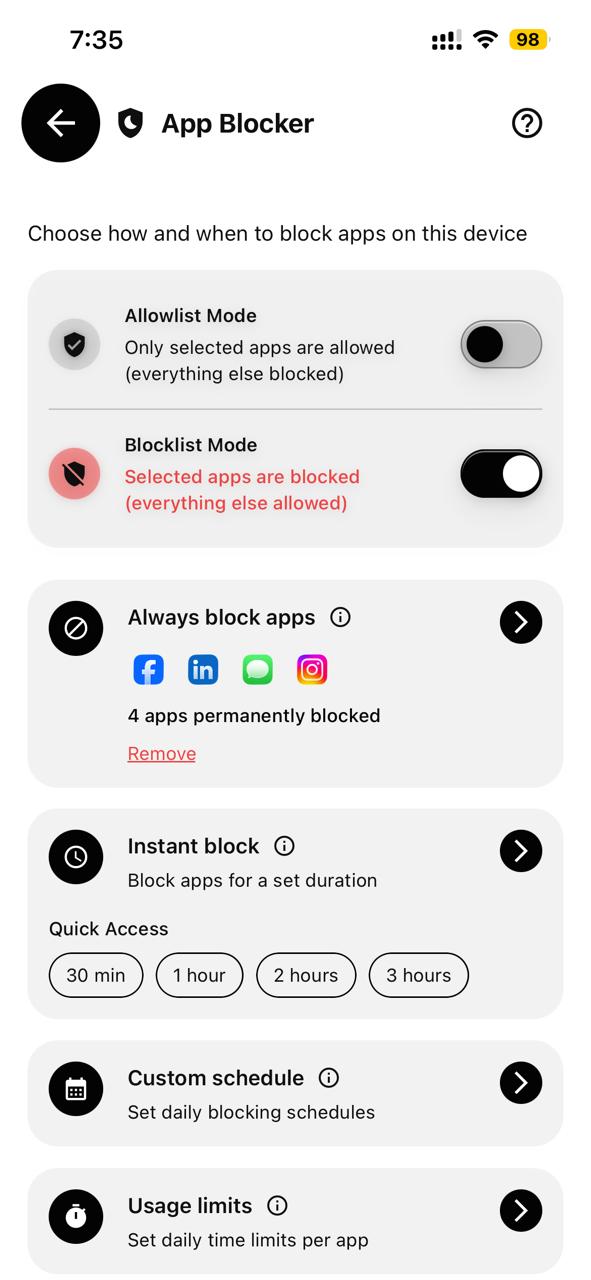
| Kahf Kids Blocker — Allowlist/Blocklist modes with Uninstall & Install Protection |
The Kahf Kids App Blocker lets parents allow or block apps and prevent uninstalls.
Block Haram Websites with the Website Blocker
The Website Blockerlets you block or allow specific domains with a single tap. It is the perfect complement to a DNS filter for sites you want to control precisely.
Switch on Blocklist Modeto block distracting video or streaming platforms, or turn on Allowlist Modeso only trusted domains open. Tap Add Websiteto extend the list whenever you need to.
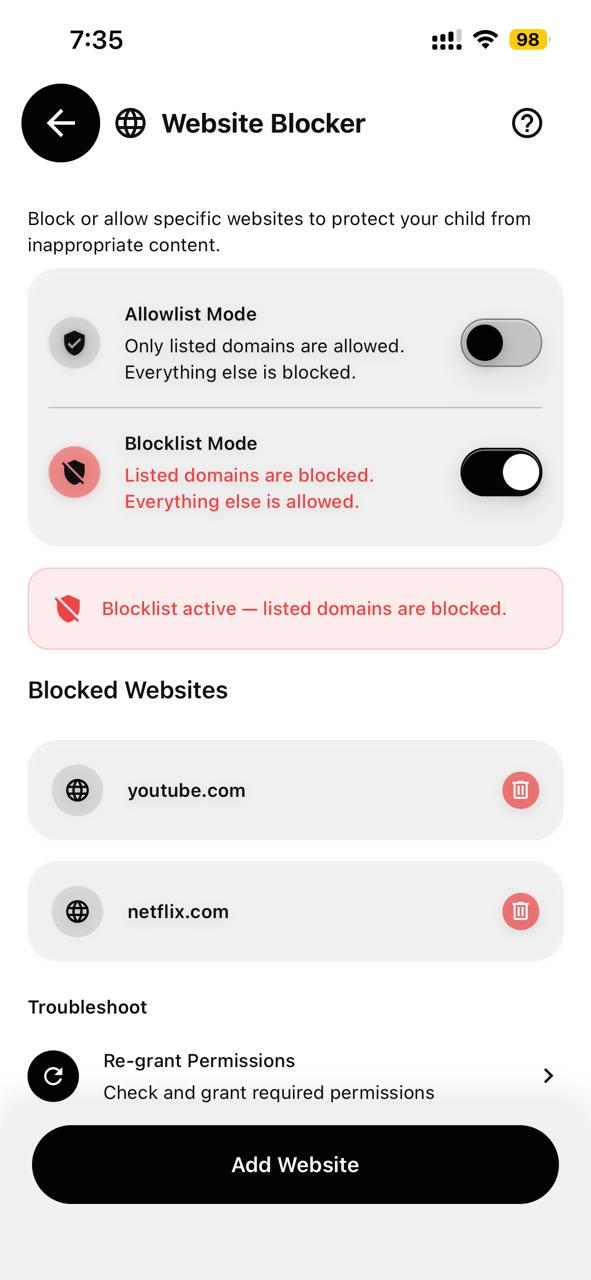
| Kahf Kids Website Blocker — block specific domains in Blocklist mode |
Add any haram or distracting domain to the Website Blocker in seconds.
Replace Screen Time with Halal Content in Kids Corner
Blocking is only half the job, because children still need something safe to watch and do. The Kids Cornergives them exactly that in an ad-free, distraction-free space.
Inside Kids Corner your child finds parent-approved Videos and Playlists, the Quran, structured Courses, a Draw Pad, educational Games, Dua for Kids, Asmaul Husna, and quizzes. Every video is manually reviewed, so there is no addictive algorithm steering your child toward harmful content.
To go deeper on safe, beneficial content, explore our roundups of the best Islamic apps for kids and halal videos for kids.
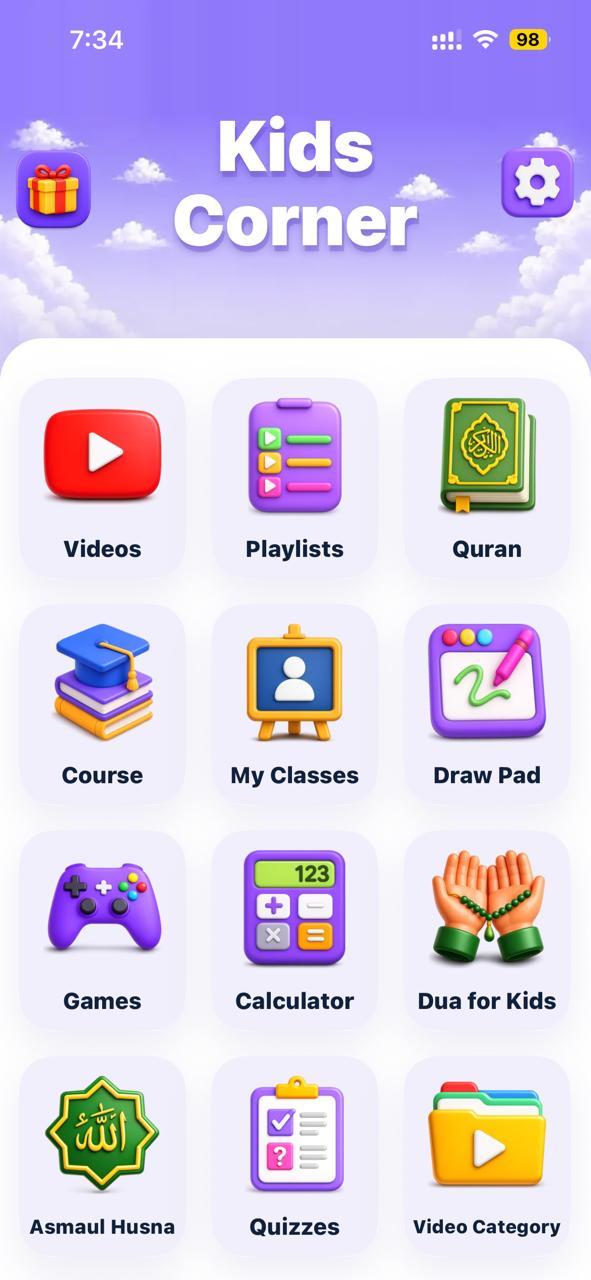
| Kahf Kids — Kids Corner: Videos, Quran, Course, Games, Dua, Asmaul Husna & more |
Kids Corner replaces idle screen time with parent-approved Islamic edutainment.
Why Uninstall and Install Protection Matter Most
Most parental tools fail at the same point: a curious child simply deletes the app or installs a new browser to get around the rules. Kahf Kids closes both of these escape routes.
With Uninstall Protection on, the app cannot be removed without your PIN. With Install Protection on, no new app appears without your approval. Together they turn a set of settings into a system your child cannot quietly dismantle.
Comparison: Which Layer Blocks What?
Each layer covers a different gap, and the real strength comes from using them together. This table shows at a glance what each one handles.
| Protection layer | Blocks | Cost |
| Screen Time / Family Link | Adult sites, explicit search | Free |
| DNS filter | Adult + gambling across all apps | Free |
| Kahf Kids App Blocker | Unsafe apps, uninstalls | Free trial, then premium |
| Kahf Kids Website Blocker | Specific haram / distracting sites | Free trial, then premium |
For device-specific guidance, see our deep dives on safe and educational games for kids, the best educational and Islamic apps, videos, and games, and whether Snapchat is safe for kids.
How to Talk to Your Child About Online Safety
Filters protect the device, but conversation protects the child. The most resilient kids are the ones who understand why certain content is harmful, not just that it is blocked.
Keep the tone calm and age-appropriate. Explain that some content can hurt the heart and mind, the way some food can hurt the body, and that these tools exist to help, not to punish.
Invite your child to come to you if they ever see something upsetting, with no fear of blame. A child who feels safe talking to you is far better protected than one who only fears the rules.
Common Mistakes Parents Make
A few avoidable slip-ups undo even the best setup. Watch out for these as you go.
- Using the same code for the parental controls and the phone unlock, so the child already knows it.
- Relying on one layer and assuming a single filter covers everything.
- Forgetting other devices such as tablets, a sibling’s phone, or a games console.
- Never revisiting settings after an operating-system update resets or changes them.
- Skipping the conversation and treating technology as a substitute for trust and guidance.
The Bottom Line for Muslim Parents
Protecting your child online is not a single switch you flip once. It is a few smart layers working quietly together, backed by open conversation.
Start with the free built-in filters today, add a DNS filter for whole-network coverage, and let Kahf Kidshandle the apps and websites while filling idle screen time with content that nurtures faith and curiosity.
A safer, more beneficial phone for your child is genuinely only a few steps away. The best time to set it up is right now.
| Ready to make your child’s phone safe? Download Kahf Kids free, set up the App Blocker and Website Blocker in minutes, and give your child a halal digital space you can trust. Get Kahf Kids |