
How to Use Kahf Kids
A simple guide to set up Kahf Kids and use its parental controls. Follow each step to keep your child’s screen time safe.
Contents
Getting started
How to Set Up Kahf Kids for the First Time
Setting up Kahf Kids takes only a few minutes. Follow these steps when you open the app for the first time.
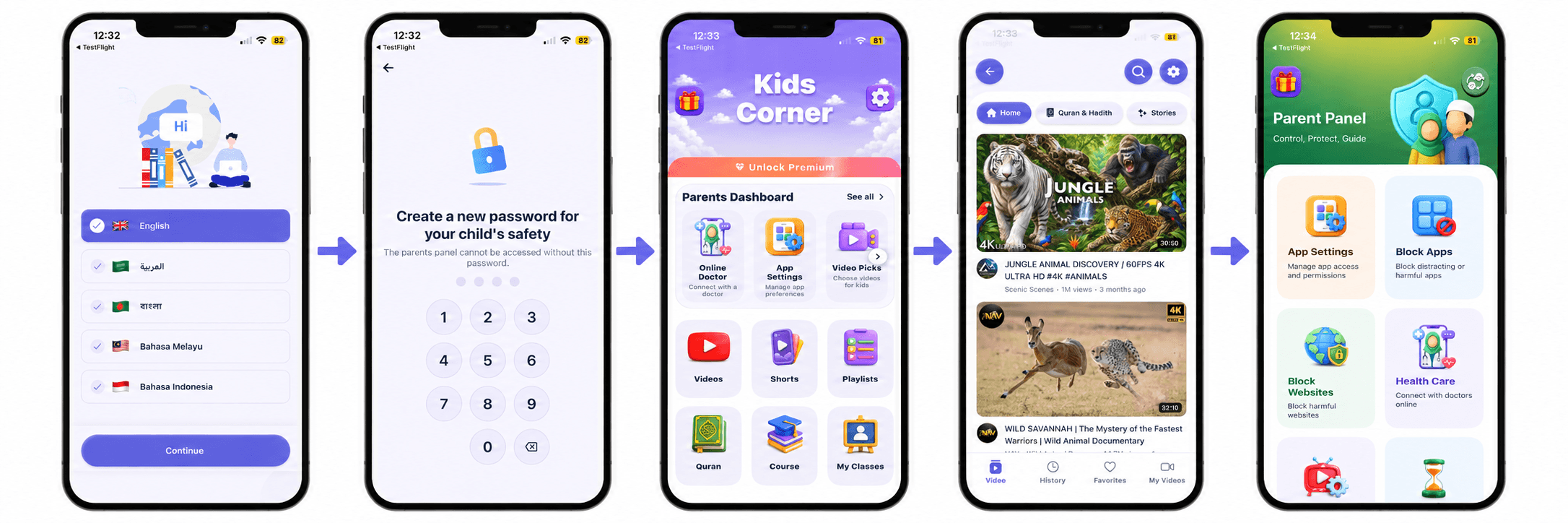
Complete onboarding
Choose your language. Then go through the onboarding screens.
Set a parent password
Create a parent password or PIN. You will use it to open the Parent Panel. Pick a PIN your child cannot guess.
Allow the needed permissions
Give Kahf Kids the permissions it asks for on the device. The app needs them to work properly.
Explore the Kids Panel
After setup, you will see the Kids Panel. Here your child can watch videos and Shorts, open playlists, read the Qur’an, take courses and more.
Open the Parent Panel
Enter your password to open the Parent Panel. You will find all the parental controls here.
Swipe to see all steps →
Video control
How to Change Video Settings in Kahf Kids
You can change the video settings to match your child’s age and needs. You control everything from the Parent Panel.
Screen time
How to Set a Screen Time Limit for Kids
You decide how long your child can watch videos on Kahf Kids each day. Set a daily watch time that fits your family routine. Read more about healthy screen time for kids.
App control
How to Block Apps on Your Child’s Phone
Is there an app you do not want your child to use? You can block it with Kahf Kids. Pick the apps you want to stop and block them.
Game control
How to Block Games Like Roblox on Your Child’s Device
You block games the same way you block apps. If you do not want your child to play a game like Roblox, you can block it in a few taps. See our full guide on how to block Roblox on your kid’s phone.
Web control
How to Block Websites with Kahf Kids
Kahf Kids also helps you control web browsing. You can block any website you do not want your child to visit. Just add it to your block list. Learn more about how to block haram content on your child’s phone.
For kids
What Your Child Finds in the Kids Panel
The Kids Panel is easy for children to use. Everything they need is in one place.
Videos
Safe videos made for kids
Shorts
Short videos to watch anytime
Playlists
Favorite videos saved in one place
Qur’an
Read the Qur’an inside the app
Course
Learning and Islamic courses
My Classes
Your child’s classes and lessons together
Games
Fun and safe games for kids
Dua for Kids
Daily duas for children
Asmaul Husna
The 99 names of Allah with meanings
Draw Pad
A space to draw and create
Video Category
Videos sorted by topic
My Videos
Videos you added as a parent show up here
Want more courses? Visit Kahf Kids Learn.
For parents
Control Everything from the Kahf Kids Parent Panel
The Parent Panel lets you manage your child’s device and content. You need your parent password to open it.
- App SettingsManage the app
- Block AppsStop apps and games
- Block WebsitesStop websites
- Video SettingsChoose what kids watch
- Watch TimeSet daily limits
Setup checklist
What to Do After You Set Up Kahf Kids
You do not need to change everything at once. Adjust the settings step by step as your child needs.
- 1Finish onboarding
- 2Set a parent password
- 3Allow the needed permissions
- 4Choose your video settings
- 5Set a daily watch time
- 6Block the apps and games you do not want
- 7Block the websites you do not want
- 8Check all settings once in the Parent Panel
You can change any setting later from the Parent Panel.
Start Using Kahf Kids Today
Keep your child’s screen time, apps, websites and videos safe from one place.
Download Kahf Kids →